What’s new in version 3.5
- Added Crop & Rotate function for loaded images
- Added new stickers in category Sport
- Improved button positions on the main screen
- Other improvements and bug fixes


AndroidVilla Apps
What’s new in version 3.5
What’s new in version 3.4


Important update
Future improvements and updates will be focused on the free version with optional in-app purchases. The separate paid version is now called Add Watermark Classic and will only receive essential security updates to simplify support and future development.
You can continue using the app for free or upgrade to unlock additional features. If you previously purchased the paid version, you are welcome to switch to this version. As a thank you for your support, you can receive a special migration offer with access to all premium features.
What’s new in version 3.3

What’s new in version 3.2:
How to apply a solid background to a watermark text:
🌻 By the way, did you know, that you can also use any smiley available in your Android keyboard? Just switch to the smiley-tab when editing your watermark text.


After a long time without updates we are pleased to announce you the new release!
What’s new in version 3.1:
How to find processed images on device:


How to import custom fonts:


Sometimes when you want to select a new image you may experience following error:
Error while loading source image! Make sure image is available and access permission is allowed.

Probably you are trying to open an image from Downloads, Recent or similar. Unfortunately this doesn’t work correctly on some devices.
In this case please try again and select another chooser dialog:
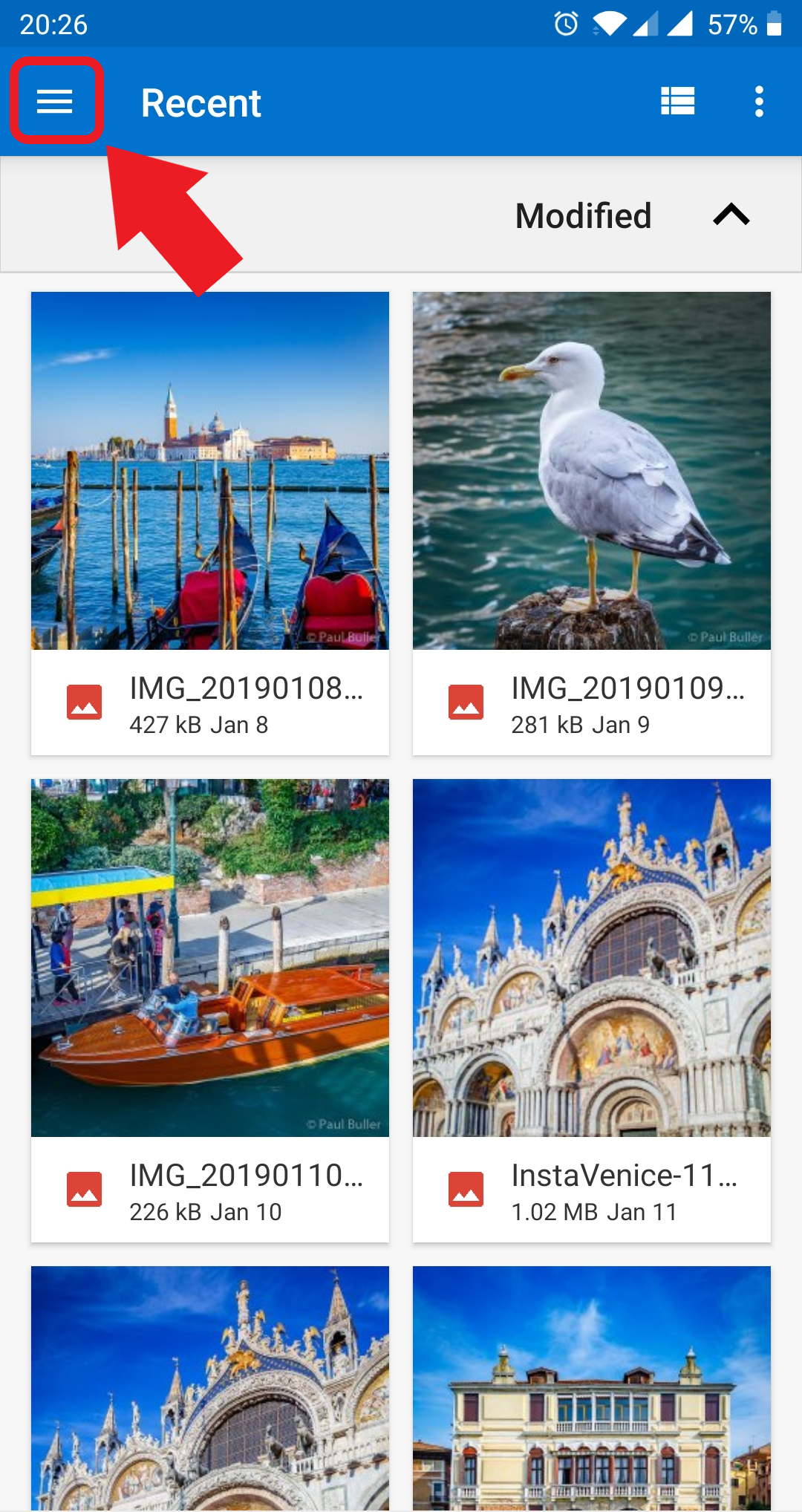
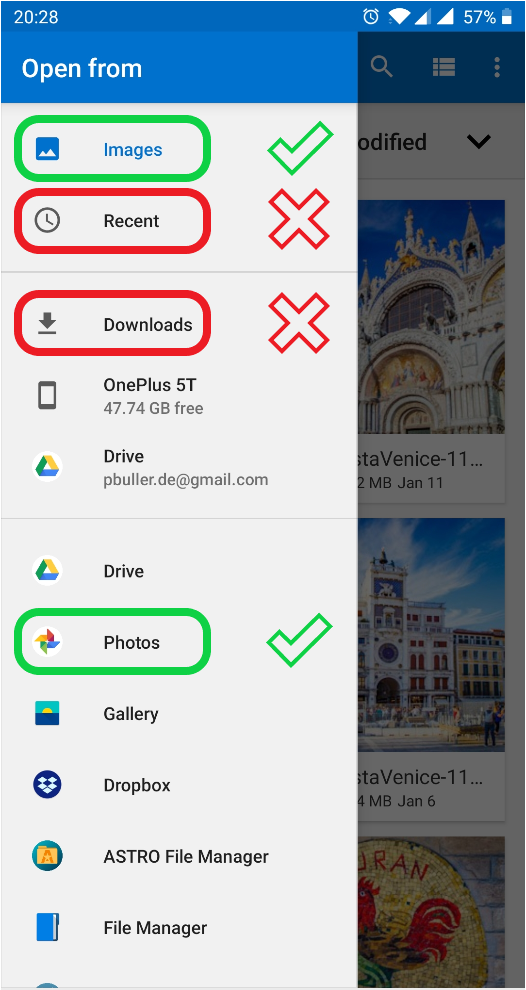
Generally Add Watermark needs following permissions to be granted on your device:
Beginning in Android 6.0, users grant permissions to apps while the app is running, not when they install the app.
When you start the app for the first time, you should see a permission request dialog:
Once allowed it doesn’t appear any more. But when you for some reason don’t allow, the app will generate errors when trying to load a source image or save processed image. In this case just restart the app, it will show the permission request again. Press “Allow” and that’s it!
Sometimes the permission request doesn’t appear, instead you see a “Screen overlay detected” message. This is because of another app with a floating overlay like Facebook Messenger, Twilight, CleanMaster, or Lux, that blocks permission requests from other apps. In this case please try to close all such floating activities then launch Add Watermark again. It is supposed to request permission without the “Screen overlay detected” error popping up.
If it didn’t help, follow this step-by-step guide:
https://www.androidpit.com/how-to-fix-screen-overlay-detected-error
We are pleased to announce you the new release!
What’s new in version 3.0:
Since version V3.0 there is full support of EXIF and XMP metadata in Jpeg images. That means, all metadata saved in the original image like photosphere tags, specific copter data, is also present in processed pictures.
For example, you can watermark a photosphere (360° panorama) to produce awesome 3D text effects. Viewing or posting processed pictures e.g. to Facebook works the same way like with original images. Make your spherical panoramas to eye-catcher!
Tips:
How Facebook does determine whether a photo is in 360:
– The photo must have a 2:1 aspect ratio, with maximum file dimensions of 6000 x 3000 pixels
– The Exif XMP tag “ProjectionType=equirectangular”
Learn more: Editing 360 Photos & Injecting Metadata
Since the new version 3.0 you can easy recall up to 20 recently used watermarks with all their properties. Like using profiles to quick switch between many predefined settings. How this works:
Each time you save resulting image the app stores all watermark settings in the list “Recent texts” or “Recent images” depending on the current watermark type.
To reuse one of last used watermarks please follow the steps:

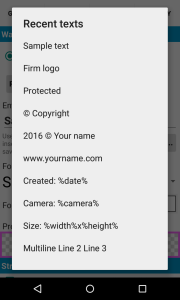

Tips:
Please don’t forget: as a confirmation you need to save your resulting image to make sure your new/changed watermark’s properties can be recalled from the recent list.
If you apply changes to a recent watermark, they will be updated while saving resulting image until you change the watermark content itself (text or watermark file name). Then it will be saved under a new name.
After a new installation the list “Recent texts” already contains a preloaded set of watermark samples. Try them out!
The earlier watermarks (>20) will be replaced with last ones. Last saved comes always up in the list.
List of “Recent images” saves both types of image watermarks: built-in stickers and user’s custom logos.
Since version 3.0 there is a set of built-in watermark images (stickers) you can use for your images. Also in the free version!
To add a such sticker just:

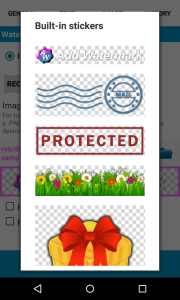

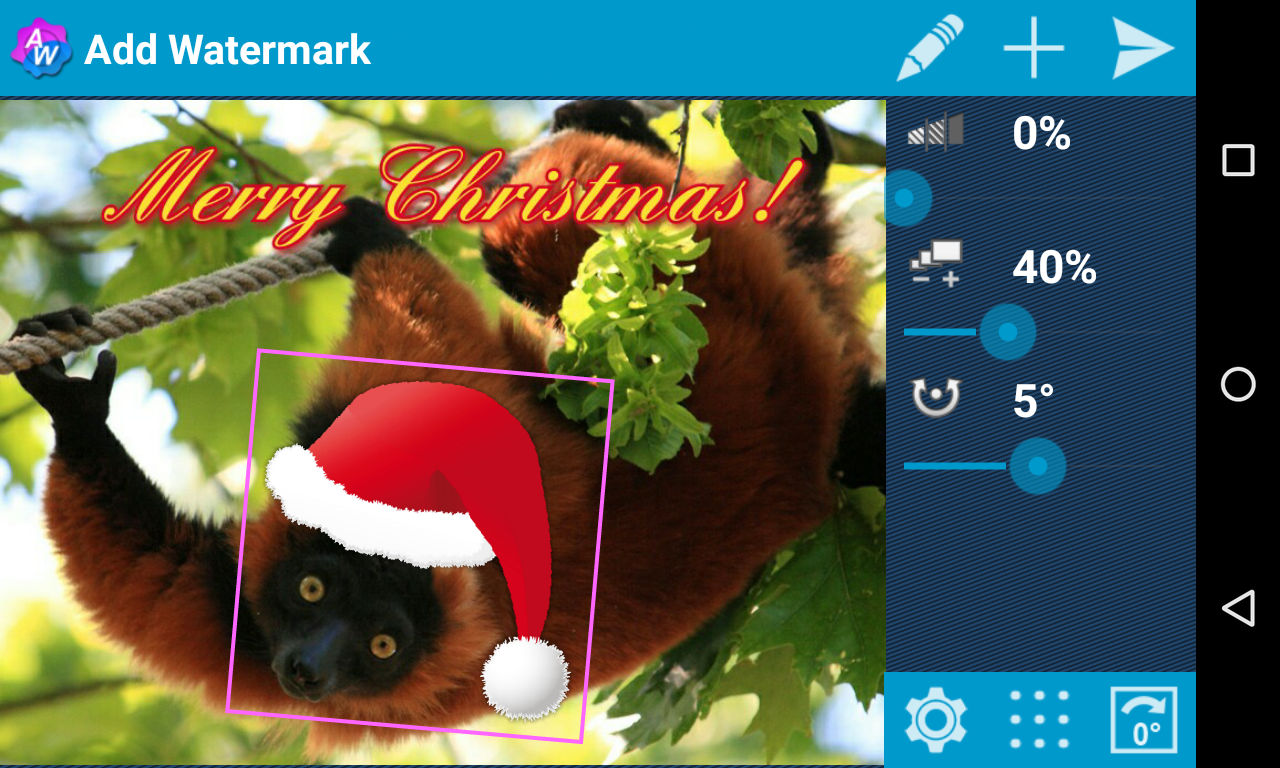
When you are missing some special stickers please let me know!
When you are storing your images in Dropbox cloud, you may be wondering, how to watermark more than one image using batch mode. Because currently in Dropbox you can select only one single file to send it to another app.
Please find below a workaround. To say it short, you need first to download images to device.
1. Start Dropbox and mark needed images, then save them to device (use three point menu > save to device):
Changes in version 2.9.5:
Changes in version 2.9.4:
Changes in version 2.9.1:
Changes in version 2.9:
Problem: You have a Samsung Galaxy S4, S5 or Note3 with the newest Android 4.4.2 KitKat. When you try to save a watermarked image the following error is occurred: “X images were not processed due to errors…”

This is a known issue and it seems to be unique to the Android 4.4.2 KitKat update for the Galaxy S4 and Note 3 only. The new specifications in the Android API pretty much makes your microSD card useless. The third party apps will not be allowed to use it. More about here: http://goo.gl/xtPOye.
So, for example, you want to watermark some pictures taken with the standard camera app, stored on the microSD card. By default in Add Watermark the target folder is set to “Default folder”. This is the folder where the source images are stored. And this causes the problem. As applications are no longer able to create, modify, or remove files and folders on the external SD card due to new Android security policies.
Solution:
You need to use the internal storage for saving images in Add Watermark. Please set the target folder in the save dialog to “Custom folder” and choose a place, for example “/storage/emulated/0/addwatermark”.
Since version 2.8.6 you can import up to 20 TrueType or OpenType fonts to the app (only 1 custom font in the free version).
Just copy your font files (extension .ttf or .otf) to the folder “addwatermark/custom_fonts” on your device. This folder is automatically created after app installation.

When you start Add Watermark, you can see now the custom fonts (Settings / Text / Font), added to the build-in fonts starting with numbers [1]..[20]:

Please note, if you can’t see a custom font in the app, the file might have a wrong format or is corrupted.
Changes in version 2.8.7:


Changes in version 2.8.6:


